Sale!

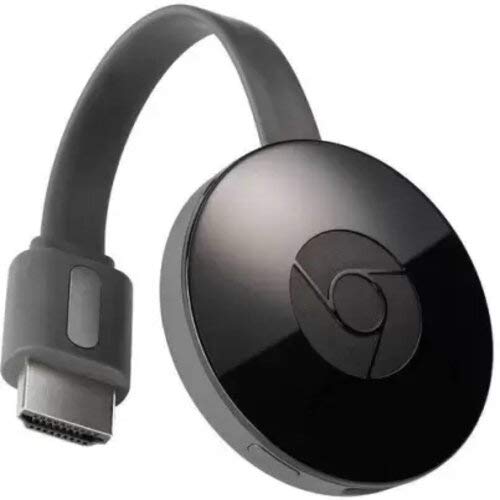
4K Wireless Display HDMI Casting Dongle

Original price was: ₹2,999.00.Current price is: ₹800.00.


4K Wireless HDMI Dongle

  • This 4K Wireless HDMI Dongle supports most resolutions, including 4K x 2K@30hz, 1080P @60hz,1080P @30hz, 3D /720P, you can stream most luxurious video and audio with your friends or families via the connection of router and devices.


Compatibility

  • On Android devices can work on almost everything.However some devices are not compatible with Apps which have subscription service for watching TV, like Netflix, Amazon video, Sky Go, BT Sport, DIRECTV, HULU, Comcast tv, Xfinity, Vudu, Movistar, or other App which have “HDCP” video copyrights protection.


Wide Comaptiblity

Support Smart Phones, PC,Video apps to TVs, projectors and Vehicle devices.


INSTALLATION

  • Turn on your TV and power up the M1 dongle by connecting the USB cable from the dongle to a USB adapter (5V2A). Please place the WiFi receiver at a location with good WiFi reception.
  • Connect the M1 dongle directly into an HDTV input port on your TV.
  • Set your TV’s Source/Input selection to HDTV input port connected to the M1 dongle
  • Your M1 dongle now starts up and will display instructions on your TV screen. Follow the instructions to complete setup


Setup for Airplay Devices

Step 1. Connect M1 DONGLE in WiFi Setting on iPhone

Step 2. Go to Safari and input 192.168.49.1 to come to the setting menu

Note: In setting menu, you can connect your home wifi here by clicking “Internet” and Choosing your home Wifi to connect. Once connected, no need to reconnect again. Also, language ,M1 password, and Resolution can be changed by yourself in setting page.

Step 3. Pull up the Control Center on iPhone and go to Airplay mirroring, and select M1 dongle to start to mirror.


Connection M1 Dongle on Android Devices

Step 1. Press the button on the dongle to switch to Android mode

Step 2. Find Miracast(wireless display/smartview/play to etc) on your Android device, and pair with M1 to start mirror.

Note: if you are not sure about Miracast, you can download our EZMira app to pair with M1 dongle to mirror directly.

Category: Tag:


4K Wireless HDMI Dongle

  • This 4K Wireless HDMI Dongle supports most resolutions, including 4K x 2K@30hz, 1080P @60hz,1080P @30hz, 3D /720P, you can stream most luxurious video and audio with your friends or families via the connection of router and devices.


Compatibility

  • On Android devices can work on almost everything.However some devices are not compatible with Apps which have subscription service for watching TV, like Netflix, Amazon video, Sky Go, BT Sport, DIRECTV, HULU, Comcast tv, Xfinity, Vudu, Movistar, or other App which have “HDCP” video copyrights protection.


Wide Comaptiblity

Support Smart Phones, PC,Video apps to TVs, projectors and Vehicle devices.


INSTALLATION

  • Turn on your TV and power up the M1 dongle by connecting the USB cable from the dongle to a USB adapter (5V2A). Please place the WiFi receiver at a location with good WiFi reception.
  • Connect the M1 dongle directly into an HDTV input port on your TV.
  • Set your TV’s Source/Input selection to HDTV input port connected to the M1 dongle
  • Your M1 dongle now starts up and will display instructions on your TV screen. Follow the instructions to complete setup


Setup for Airplay Devices

Step 1. Connect M1 DONGLE in WiFi Setting on iPhone

Step 2. Go to Safari and input 192.168.49.1 to come to the setting menu

Note: In setting menu, you can connect your home wifi here by clicking “Internet” and Choosing your home Wifi to connect. Once connected, no need to reconnect again. Also, language ,M1 password, and Resolution can be changed by yourself in setting page.

Step 3. Pull up the Control Center on iPhone and go to Airplay mirroring, and select M1 dongle to start to mirror.


Connection M1 Dongle on Android Devices

Step 1. Press the button on the dongle to switch to Android mode

Step 2. Find Miracast(wireless display/smartview/play to etc) on your Android device, and pair with M1 to start mirror.

Note: if you are not sure about Miracast, you can download our EZMira app to pair with M1 dongle to mirror directly.

Reviews

There are no reviews yet.

Be the first to review “4K Wireless Display HDMI Casting Dongle”

Your email address will not be published. Required fields are marked *