Sale!

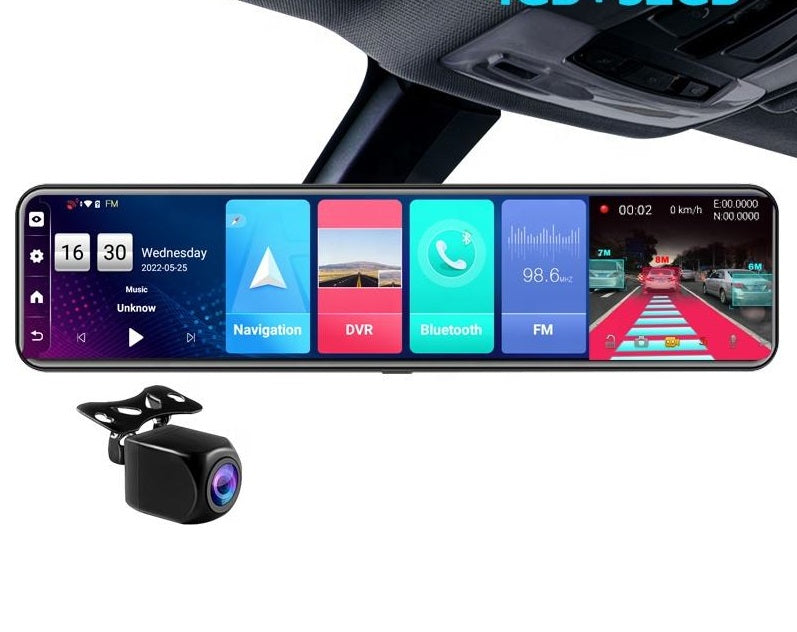
12 Inch Touch Screen Mirror Android Car Dual Dash Camera (Front & Rear)

Original price was: ₹19,999.00.Current price is: ₹14,500.00.

FULL HD DUAL DASH CAMERA

The Full HD Dual Dash Camera captures high-quality footage from both the front and rear cameras, providing a comprehensive view of the road ahead and behind.

12 INCH TOUCH SCREEN

The 12-inch touch screen display offers a stunning viewing experience with its cutting-edge technology and mirror screen design that follows the curves of the device.

TRIPLE SCREEN SPLIT

The Triple Screen Split feature allows for simultaneous viewing of the front camera, rear camera, and navigation, providing convenience and safety while driving.

ANDROID 8.1

The D4 Dash Camera runs on Android 8.1 OS and is powered by a SL8541E quad-core 1.4Ghz high-performance processor, with 2 GB RAM and 32 GB ROM, providing smooth and efficient performance for multiple functions.

2 GB RAM & 32 GB ROM

With 2GB RAM and 32GB ROM, the device operates smoothly and is capable of handling multiple functions with ease. The compatibility with more Android apps through the Google Play Store enhances the functionality and versatility of the device.

MOBILE KEEPER APP REMOTE MONITORING

The Mobile Keeper App allows for remote monitoring of the car’s location, viewed images, and recorded videos from anywhere in the world.

ADAS

The ADAS (Advanced Driving Alarm Systems) feature, which includes LDWS, FCWS, and FVMA, helps keep the driving experience safer and more secure.

G-SENSOR

The G-Sensor feature automatically activates in the event of a collision, recording emergency video to help drivers gather evidence in case of unexpected situations.

PARKING MONITOR

The Parking Monitor feature activates the dash camera when the car is parked and detects any motion or impact, providing protection against theft or vandalism. The dashcam comes with hardwire kit for easy 24×7 parking monitor.

4G SIM SUPPORT & WIFI

The 4G SIM card and built-in WIFI enable internet access while on the road, allowing for online navigation, music streaming, and web surfing.

BLUETOOTH

Bluetooth connectivity offers hands-free calling and music streaming, providing added convenience and safety while driving.

GPS NAVIGATION

GPS Navigation provides accurate and up-to-date directions to your destination, enhancing the functionality and versatility of the device.

FAQ

Q: What should I do if my D4 Dash Camera freezes or crashes? A: If your device freezes or crashes, try restarting it by pressing and holding the power button for a few seconds. If that doesn’t work, try resetting the device to factory settings.

Q: How do I install the D4 Dash Camera in my car? A: The D4 Dash Camera is designed to be installed over your car’s existing rearview mirror. Simply remove your car’s rearview mirror and attach the D4 Dash Camera using the included mounting bracket.

Q: How do I activate the G-sensor and Parking Monitor? A: The G-sensor and Parking Monitor are both activated automatically when the device is powered on. However, you can adjust the sensitivity settings for both features in the device’s settings menu.

Q: How do I connect to the device’s Wi-Fi network? A: To connect to the device’s Wi-Fi network, go to your phone’s Wi-Fi settings and select the network named “D4 Dash Camera”. The default password for the network is “12345678”.

Q: How do I access the Mobile Keeper App? A: To access the Mobile Keeper App, you’ll need to download and install the app on your smartphone. Once installed, open the app and follow the instructions to connect to your D4 Dash Camera.

Q: How do I update the device’s firmware? A: To update the device’s firmware, connect the device to a computer using the included USB cable and follow the instructions in the firmware update tool.

Q: How do I troubleshoot GPS issues? A: If you’re having issues with the device’s GPS, try resetting the GPS module by turning off the device and then turning it back on. Also, make sure the device has a clear view of the sky and that GPS is enabled in the device’s settings menu.

Q: How do I adjust the device’s display settings? A: To adjust the device’s display settings, go to the settings menu and select “Display”. From there, you can adjust settings such as brightness, contrast, and screen timeout.
Category: Tag:

FULL HD DUAL DASH CAMERA

The Full HD Dual Dash Camera captures high-quality footage from both the front and rear cameras, providing a comprehensive view of the road ahead and behind.

12 INCH TOUCH SCREEN

The 12-inch touch screen display offers a stunning viewing experience with its cutting-edge technology and mirror screen design that follows the curves of the device.

TRIPLE SCREEN SPLIT

The Triple Screen Split feature allows for simultaneous viewing of the front camera, rear camera, and navigation, providing convenience and safety while driving.

ANDROID 8.1

The D4 Dash Camera runs on Android 8.1 OS and is powered by a SL8541E quad-core 1.4Ghz high-performance processor, with 2 GB RAM and 32 GB ROM, providing smooth and efficient performance for multiple functions.

2 GB RAM & 32 GB ROM

With 2GB RAM and 32GB ROM, the device operates smoothly and is capable of handling multiple functions with ease. The compatibility with more Android apps through the Google Play Store enhances the functionality and versatility of the device.

MOBILE KEEPER APP REMOTE MONITORING

The Mobile Keeper App allows for remote monitoring of the car’s location, viewed images, and recorded videos from anywhere in the world.

ADAS

The ADAS (Advanced Driving Alarm Systems) feature, which includes LDWS, FCWS, and FVMA, helps keep the driving experience safer and more secure.

G-SENSOR

The G-Sensor feature automatically activates in the event of a collision, recording emergency video to help drivers gather evidence in case of unexpected situations.

PARKING MONITOR

The Parking Monitor feature activates the dash camera when the car is parked and detects any motion or impact, providing protection against theft or vandalism. The dashcam comes with hardwire kit for easy 24×7 parking monitor.

4G SIM SUPPORT & WIFI

The 4G SIM card and built-in WIFI enable internet access while on the road, allowing for online navigation, music streaming, and web surfing.

BLUETOOTH

Bluetooth connectivity offers hands-free calling and music streaming, providing added convenience and safety while driving.

GPS NAVIGATION

GPS Navigation provides accurate and up-to-date directions to your destination, enhancing the functionality and versatility of the device.

FAQ

Q: What should I do if my D4 Dash Camera freezes or crashes? A: If your device freezes or crashes, try restarting it by pressing and holding the power button for a few seconds. If that doesn’t work, try resetting the device to factory settings.

Q: How do I install the D4 Dash Camera in my car? A: The D4 Dash Camera is designed to be installed over your car’s existing rearview mirror. Simply remove your car’s rearview mirror and attach the D4 Dash Camera using the included mounting bracket.

Q: How do I activate the G-sensor and Parking Monitor? A: The G-sensor and Parking Monitor are both activated automatically when the device is powered on. However, you can adjust the sensitivity settings for both features in the device’s settings menu.

Q: How do I connect to the device’s Wi-Fi network? A: To connect to the device’s Wi-Fi network, go to your phone’s Wi-Fi settings and select the network named “D4 Dash Camera”. The default password for the network is “12345678”.

Q: How do I access the Mobile Keeper App? A: To access the Mobile Keeper App, you’ll need to download and install the app on your smartphone. Once installed, open the app and follow the instructions to connect to your D4 Dash Camera.

Q: How do I update the device’s firmware? A: To update the device’s firmware, connect the device to a computer using the included USB cable and follow the instructions in the firmware update tool.

Q: How do I troubleshoot GPS issues? A: If you’re having issues with the device’s GPS, try resetting the GPS module by turning off the device and then turning it back on. Also, make sure the device has a clear view of the sky and that GPS is enabled in the device’s settings menu.

Q: How do I adjust the device’s display settings? A: To adjust the device’s display settings, go to the settings menu and select “Display”. From there, you can adjust settings such as brightness, contrast, and screen timeout.

Reviews

There are no reviews yet.

Be the first to review “12 Inch Touch Screen Mirror Android Car Dual Dash Camera (Front & Rear)”

Your email address will not be published. Required fields are marked *